How to Modify NAV Files
Explains how to modify the paths that bot's take to navigate your map
How to Modify NAV FilesContents1. Introduction
2. Basics of NAV files
3. Going into edit mode
4. Selecting the areas
5. Functions for editing selected areas
5. a Creating new areas for bots to navigate in
5. b Connecting two areas together
6. Naming the NAV areas
7. Conclusion
1. IntroductionI've noticed that far too many maps for CS on Game Banana don't have their own navigation files written for them. It may seem like a minor feature, but it really makes a difference when playing with bots. This is why I've decided I would do a tutorial on modifying NAV files.
Before I start, I want to show you this PDF:
It will be your best friend when it comes to editing bot-navigation files, as it includes all the functions needed to edit them, plus how to use them. In this tutorial however, I will go through a step-by-step method of implementing them practically in your map.
Unto the tutorial!
2. Basics of NAV filesSo you might be wondering: how the heck do I edit NAV files? I can't see anything to do with bots in Valve Hammer Editor!
Well the fact is, you can't edit them with Hammer. You need to do it in-game (obviously without any players / bots or you'd keep dying when in the middle of modifying).
You've probably noticed that when you play a new map for the first time with bots, you will need to wait a few moments for the game to analyze the map; thus allowing the bots to navigate. This is basically Counter-Strike's method of automatically creating a NAV file.
The issue with this however, is sometimes the "auto-navigation-creator" misses a connection between NAV areas (especially when it comes to big changes in elevation), or doesn't make a very smooth path for the bots to use. This is where you need to take action and edit the NAV file, to improve the flow of your map's game-play.
3. Going into edit modeSo to start editing, open up your Counter-Strike's command console by pressing ~. If you have bots currently playing in your game, type in bot_kickand press Enter to remove them from your map. Then, type in bot_nav_edit 1 and hit Enter again to begin editing. When you leave the console and look around the map, you should see multiple, coloured rectangles all over the floors of your map (See image below):
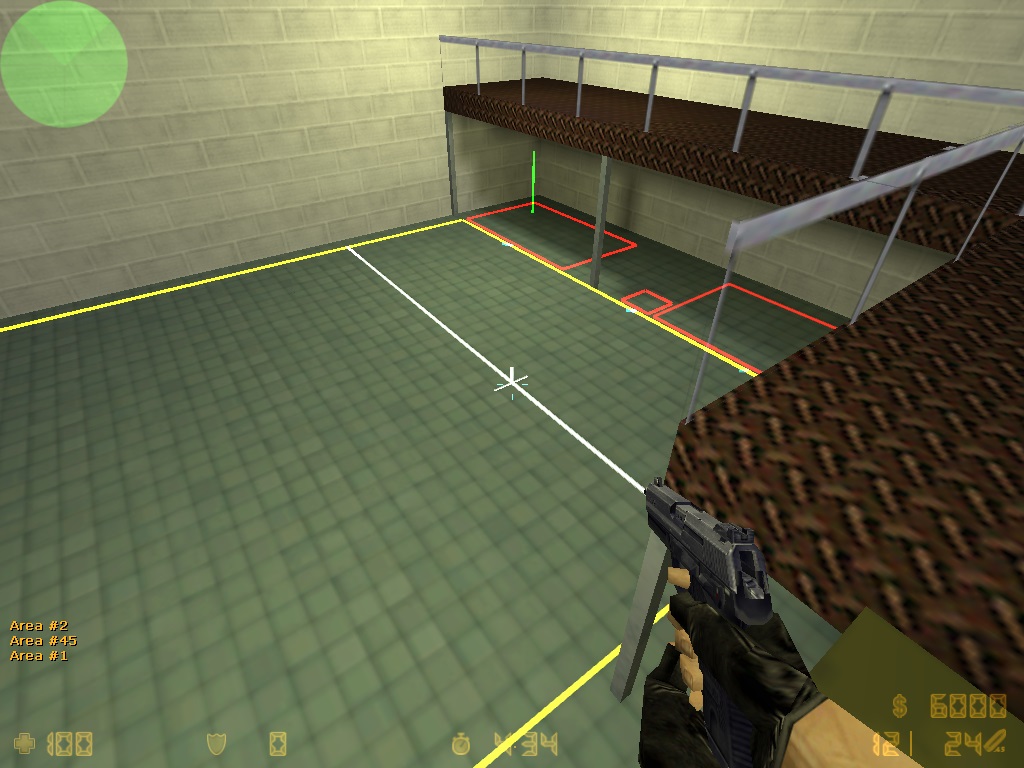
4. Selecting the areasThe coloured rectangles are where the bots can move around, to reach critical points in the map. Moving your crosshair over a rectangle will turn it yellow. It is now selected. You don't need to click on anything at all. All the other rectangles should be red.
If you would like to keep that rectangle selected, even when not aiming at it, type in the console bot_nav_mark . A high pitched beep will sound, and the rectangle will glow white. Further commands will now affect that rectangle no matter where you are aiming.
5. Functions for editing selected areasTo show you the different functions of navigation meshes, I will be editing the NAV file of a small map I made with Hammer.
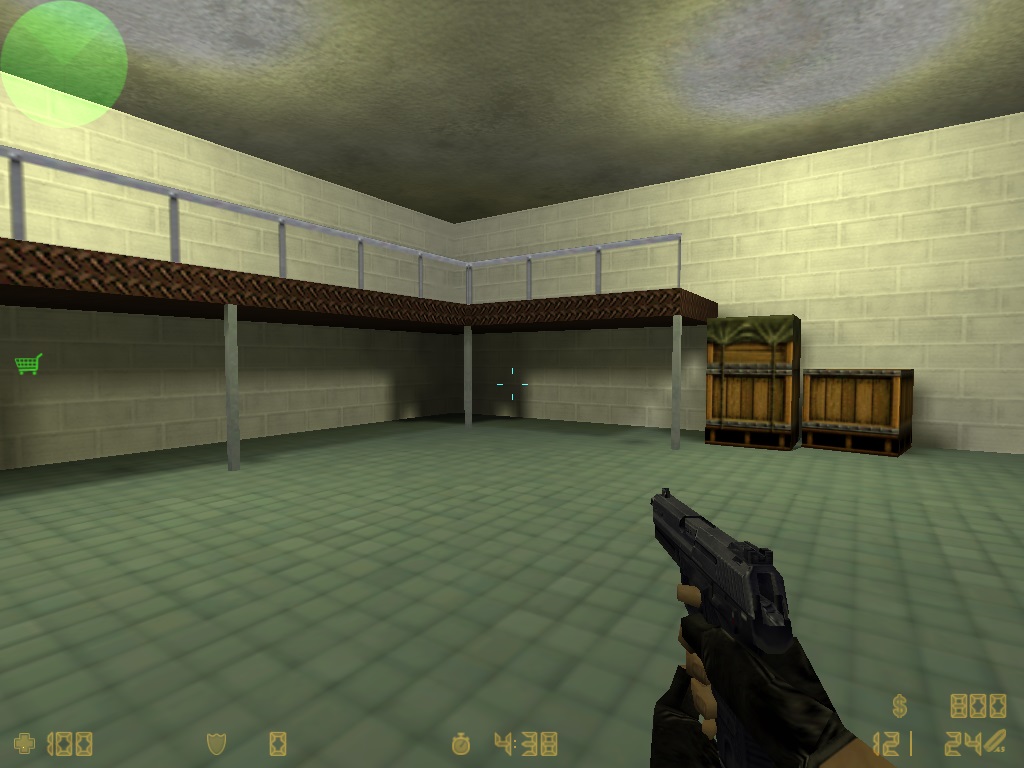
As you can see, the map has a metal over-hanging catwalk. With the default NAV file, there will be no connection between the catwalk and the main floor. With several commands, I will show you how you can create a path which bots may use to navigate onto the catwalk.
5. a Creating new areas for bots to navigate inIn this scenario, I want the bots to jump onto the crates, and then onto the catwalk. To do this, I'll start by adding a new coloured-rectangle on top of the single crate. Follow these steps:
- First climb onto the single crate.
- Then aim down at the lid of the crate and make sure that the little, white 3D-crosshair is sitting on any corner of the top of the lid (if it isn't sitting on the lid then the area won't be created on the crate).
- Now, in the console type bot_nav_begin_area. When you leave the console, you should now see a light-blue rectangle extending from where you had the 3D-crosshair when you typed the command, to where the 3D-crosshair is now:
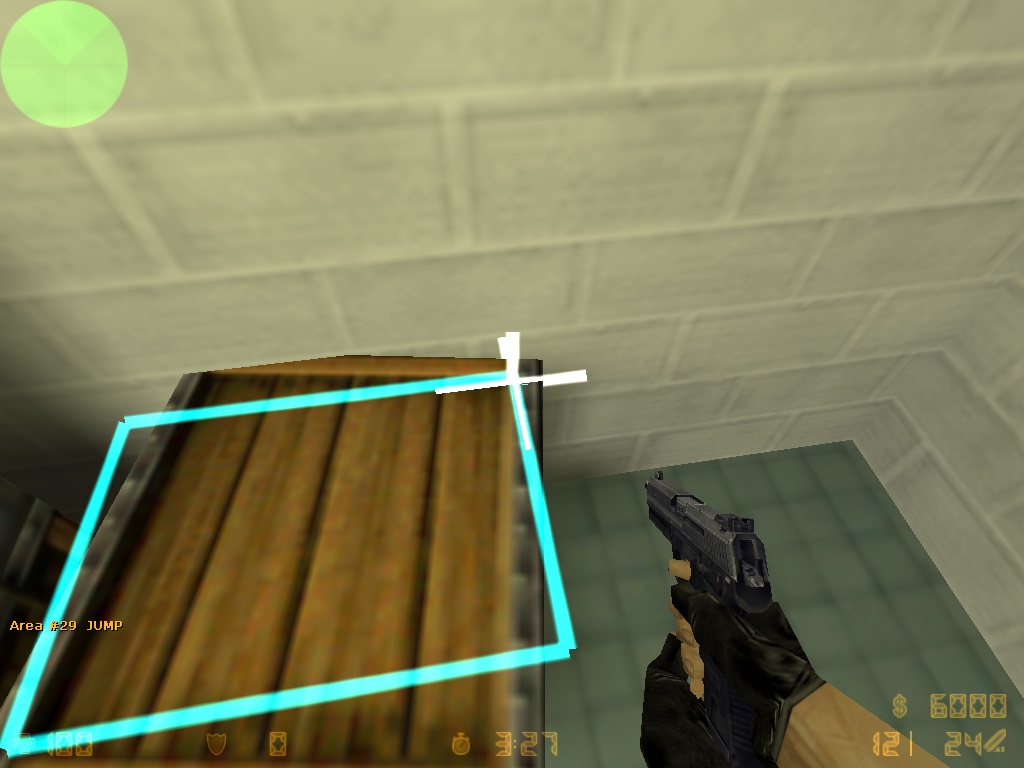
- When you're happy with size and shape of the rectangle, type inbot_nav_end_area to create a new navigation area.
5. b Connecting two areas togetherSo now we want to connect our new area on top of the single crate, with an existing area on the floor next to the crate; therefore allowing bots to jump onto the crate. To do this, follow these steps:
- Select the area on top of the crate and type in bot_nav_mark. It will now glow white.
- Next, aim at the desired area on the floor below (make sure the area is yellow to show it's selected), and type in bot_nav_splice. This command will create another new area, that links the two previous selected areas.
- You've linked the areas. Great. However bots will still not know how to get onto the crate. They know they can get there, but don't know how to, because the crate is too tall. We must add something to the area that links the crate to the floor, which tells the bot to perform a jump.
- To do this, select the linking area, and type in two commands bot_nav_jumpand bot_nav_crouch. The area will now have an X-shape inside it. Bots that navigate through this area will perform a crouch-jump; thus allowing them to jump onto the single crate.
See the image below to get a better idea of this all looks:
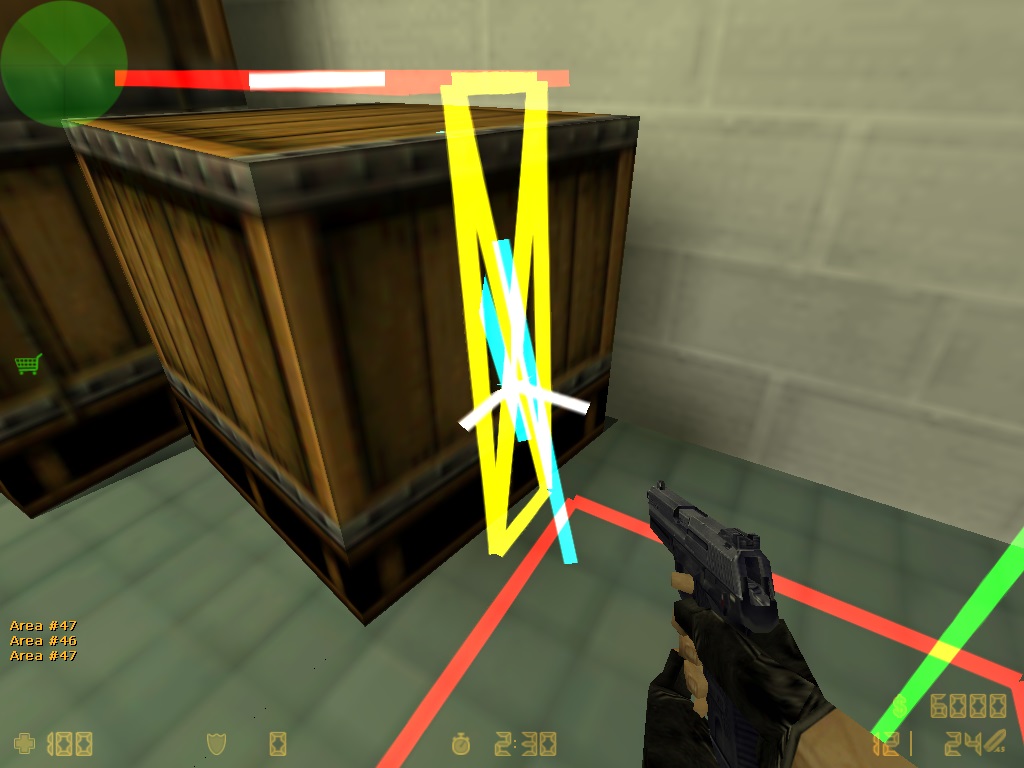
Do the same with the next level of crates, and finally splice together the area on the top crate with the catwalk areas. In most cases the default NAV will also include the areas on higher terrain (i.e. the catwalk), so all that is needed is a connection from the crates to the catwalk surface.
You now have a working connection between the floor and the overhang! Watch as your bots navigate with ease onto the top level.
6. Naming the NAV areasHave you ever noticed that when you're in different parts of an official map, a name appears just below your radar that reads "T Spawn" or "Main Hall"?
A NAV file made by the "auto-navigation-creator" will have no naming of areas featured, so you will have to edit these yourself:
- First, type into the console bot_nav_toggle_place_mode 1. All of your NAV areas will change to red no matter where you aim your crosshair.
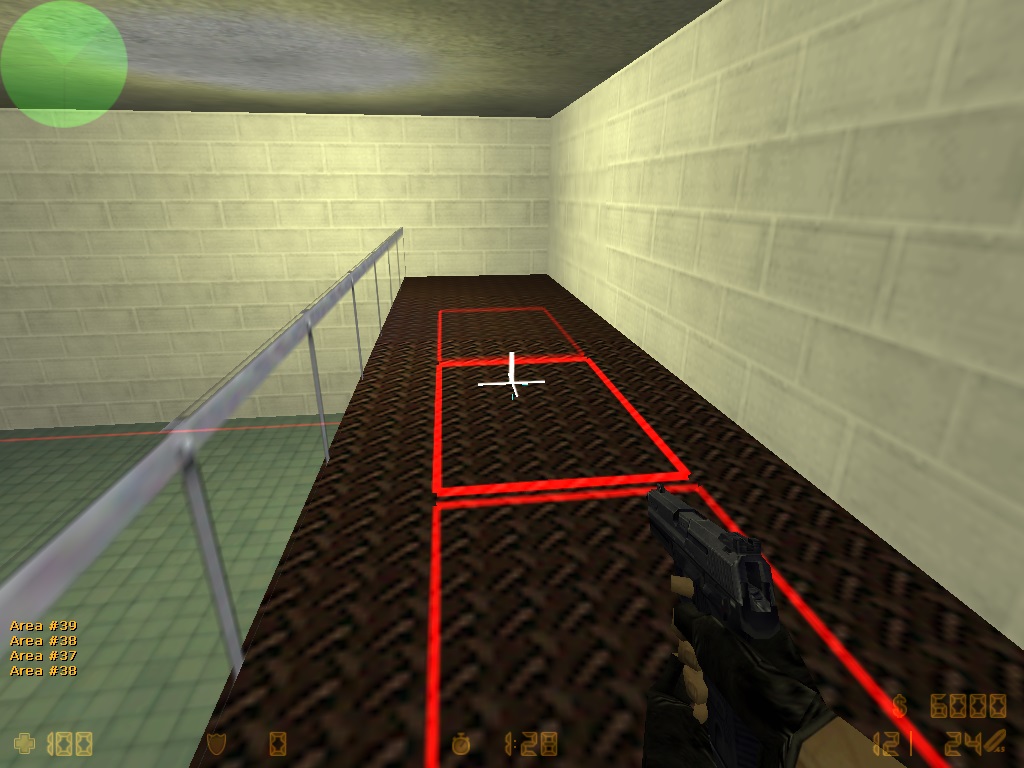
- This means that those areas are unnamed, and haven't got a title. To set a title, simply type bot_nav_use_place "Title".
Replace "Title" with the desired place name. Before you go crazy though, there are a set selection of place names to choose from --you can't name the area "BananaRoom" and expect your bots to shout "Banana Room. Clear!".
Check out the link I included at the start of this tutorial for a list of available place-names.
- Finally, to start giving the areas a place name with your desired "Title", typebot_nav_toggle_place_painting 1. All the areas that you aim at will now turn green and when you walk over them, a title will appear under your radar with the area name.
- To name multiple areas simple, hit bot_nav_toggle_place_painting 0 to disable place-painting. Then change the place name with bot_nav_use_place "Title". Finally, re-enable place-painting with bot_nav_toggle_place_painting 1.
7. Saving and loading NAV filesDon't forget to save your work! Type bot_nav_save to do this. You should save regularly, as there is no undo command and you can't revert mistakes. You can load NAV files with bot_nav_load.
8. ConclusionThis is all I have for now, in terms of editing bot NAV files. I hope this is useful, and I also hope you mappers out there can start including modified navigation files in your maps! Not only does it improve the flow of game-play with bots, but it also means there's no initial, and often lengthy, analysis of the map by the "auto-navigation-creator".
If you want to find additional information about this topic, check out the link I provided at the start of the tutorial -- it's really helpful!
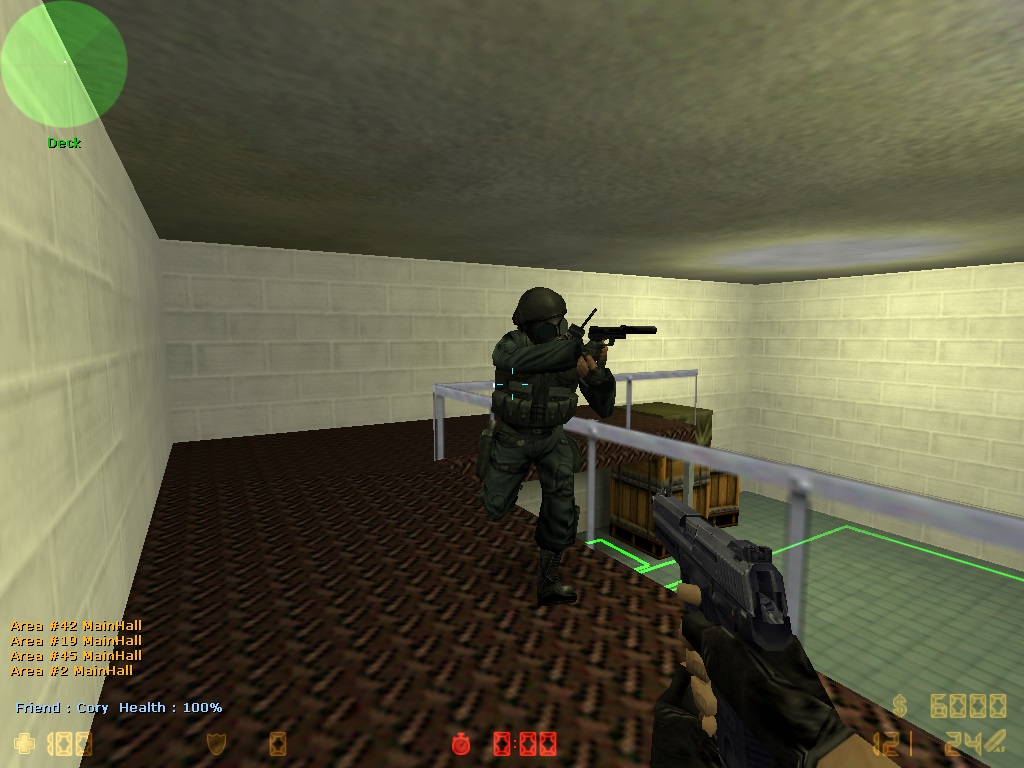
Here's a final screenie of a bot on top of the catwalk. You now know I'm not bull-sh*tting with this stuff.